Table of Contents:
Xactimate is the go-to software for writing estimates in the restoration industry.
If you’re documenting water, fire, or mold damage, especially when billing through insurance, with Xasctimate, efficiency is key. One of the most useful tools inside Xactimate is the macro, which allows you to replicate repeatable tasks quickly.
If you’re not using Xactimate macros in your estimating workflow, you’re missing out on one of the easiest ways to save time and stay consistent.
What Is an Xactimate Macro?
An Xactimate macro is a saved set of line items you can drop into an estimate to cover repeatable scopes of work. It’s one of the simplest ways to stay efficient and consistent, especially when you’re handling multiple projects a day.
Let’s say you’re writing your fifth estimate of the day and it’s a standard Cat 1 water loss with a few small rooms. Between 6 and 8 air movers in each room, a dehumidifier, cleaning the walls 2 feet up and an air filtration device. You’ve done it a hundred times before.
So, do you really need to add each line item into your estimate from scratch again?
Not with Xactimate macros.
How to Build a Macro in Xactimate (Step-by-Step)
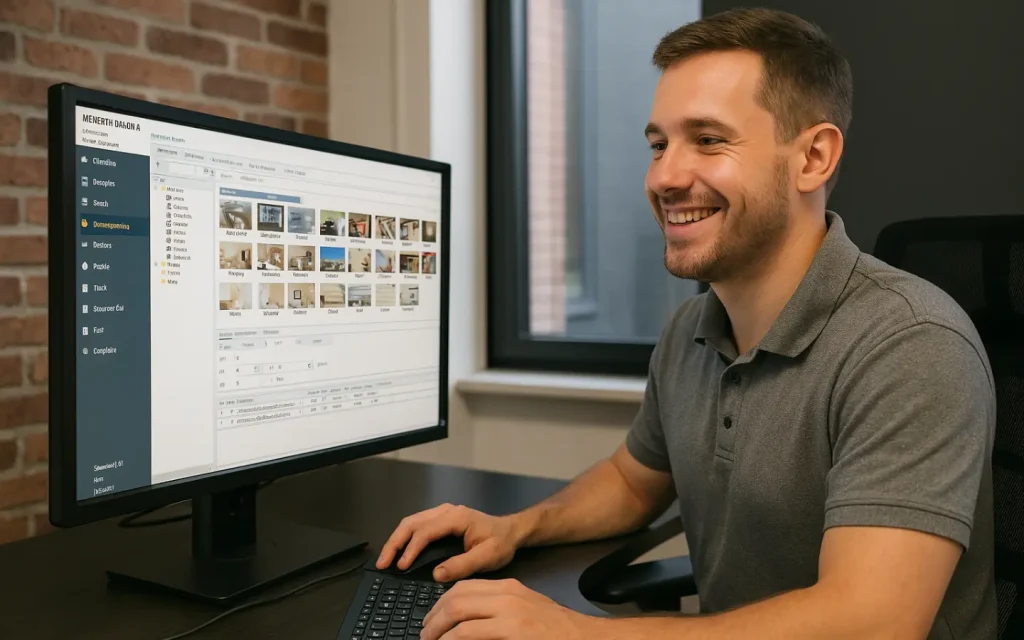
If you’ve never created your own Xactimate macro, here’s one way you can do it:
- Open any estimate, new or in progress.
- Add line items into a room.
- Highlight the line items you want to save as a macro by clicking on the first line item, then holding shift, then clicking on the last line item you’d like to add to the macro.
- The Quick Entry box will change and a “Save Macro” button will appear. Click it..
- Give the macro a name that’s easy to understand (e.g., “Cat 2 Bedroom – Demo & Dry”).
- (Optional) Add description explaining when and how to use it.
How Xactimate Macros Improve Your Efficiency
1. You can create a macro in Xactimate that is a single line item with a note attached.
Then each time you apply the macro in a room, it will automatically have your F9 note attached. If you are quoting the s500, the s520, or even OSHA standards to justify line items, these notes can be extensive. So having them included as a part of your macro will help speed up inputting these line items.
2. You can create line item clusters as a macro.
For example, when you move contents, in most cases, you will also block and pad and protect the furniture. So by creating a macro with those 3 line items grouped together, you can make sure these line items are always included. Doing it this way will give you a bit more quality control than inserting an entire room of line items and changing them all.
3. You can also create an entire room as a macro.
For example, create a Cat 1 room with 4 fans, Cat 1 with 5 fans, etc for each category. This macro will include everything your company standard includes for that room. Then you just delete what wasn’t done or adjust the quantities to fit the job actually performed.
4. You can even create macros that separate demo and equipment.
By doing it this way, there will be less adjusting of the macros. These are great tools…. When used correctly.
If you are adjusting the pricing or the trade within an estimate, you can save this change as a part of the macro by checking the “Save line item customizations” box in the save macro information popup.
Xactimate Macro Mistakes (And How to Avoid Making Them)
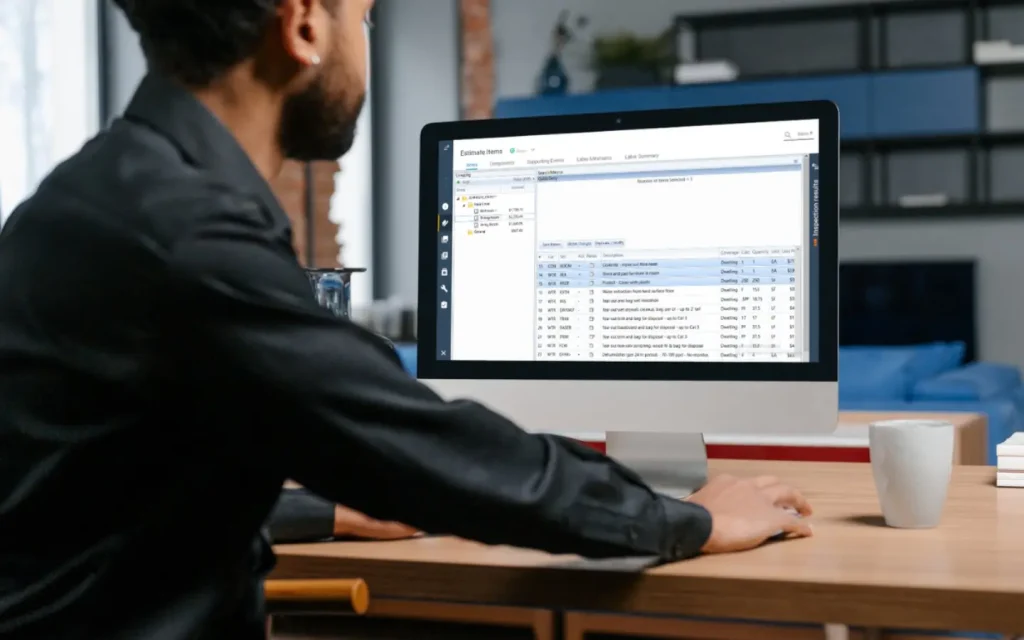
We’ve coached hundreds of estimators through this one, and we call it “the autopilot mode”.
You go from estimate to estimate during the day, and if you don’t stay engaged, your brain can easily switch into autopilot mode. This usually happens when we are using full-room macros to speed up the process. Don’t trust your full-room macros blindly! Go back, check every line item and make sure it really reflects what happened on the job. Otherwise, expect a call once it reaches an adjuster…
So while Xactimate macros can help you speed up your estimating process, try not to become too reliant on them. Overusing macros can seriously stunt your growth when it comes to line items. You end up reusing the same ones instead of digging for better line items that actually match your scope.
That’s when the smaller, legitimate charges fall through the cracks, and your margin goes with them.
There’s a better way.
Take time each week to explore the Xactimate categories you use most. Hunt for new line items. Flag the ones that might apply to future jobs. If you manage a team, build in a review process. One extra set of eyes looking at your estimate can catch missed line items, highlight red flag issues that may need more justification, or spot something that should’ve been in the estimate. That’s money you either capture or lose.
And here’s the bottom line: adjusters won’t tell you when you undercharge. If it’s not in the estimate, it doesn’t get paid. Simple as that.
Learn To Estimate Like a Pro (Xactimate Macros included)
Xactimate macros can absolutely help you move through your estimates faster and with more consistency, but they are (obviously) not the whole process. That’s why we provide in-depth estimating training, depending on how you like to learn.
If you like learning at your own pace, the ReetsTV Estimating Pro Series gives you on-demand access to 28 training videos covering everything from estimating strategy and documentation to Xactimate use, sketching, negotiating with adjusters, and more.
And if you prefer a live, instructor-led course that walks you through the full estimating workflow, then you will love our Estimating & Negotiating Livestream Training. You’ll learn how to structure jobs, justify your scope with third-party sources, avoid common estimating mistakes, and how to write estimates that are fair, customer-centric and profitable.
Whether you’re just getting started or you’re onboarding a team, we’ve got training that fits how you work, and helps you do it better.

Nick Sharp
Nick Sharp has worked with Jeremy Reets for nearly 2 decades. He started in carpet cleaning and mitigation before moving to the construction side as a project manager. He then was the senior estimator for Champion Construction for over 8 years. Since its inception in 2015, Nick has been an instructor of our Restoration Estimating & Negotiating course. His most recent venture is as a restoration estimate consultant. Nick is an Xactware Certified Trainer and also has his Levels 1-3 Xactimate Certifications. He’s a bad boy on that sketch but better at finding where you may be losing money!


770-712-7293